
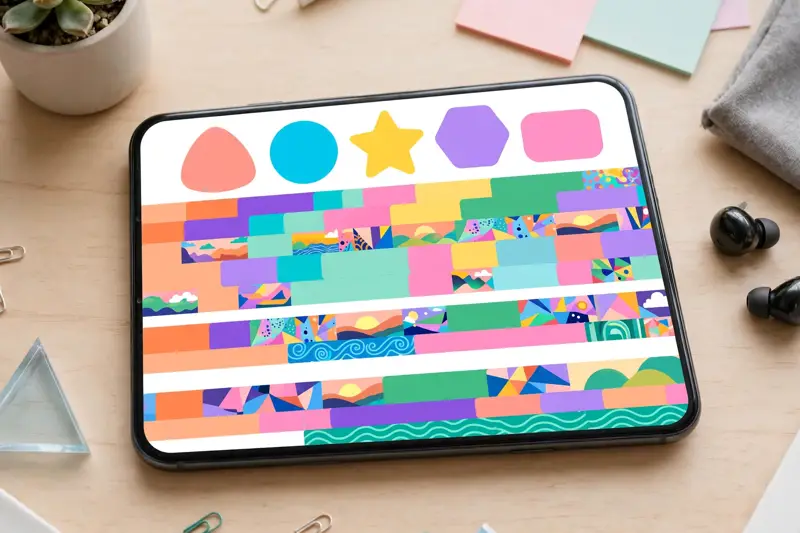
alight motion apk is the Android package for Alight Motion, a video editing app that lets you create motion graphics, animated text and short videos on your phone. It is popular with creators who make edits for social media, music videos and gaming clips, because it combines layers, keyframes and effects in one small editor. You do not need a computer or expensive software to start: a phone, a few clips and a clear idea are enough. This page explains what the app does, how its main tools work, and how to install and use it safely on Android.
What Is Alight Motion APK
A Motion Graphics Editor on Your Phone
An APK file is the package Android uses to install an app. When you install Alight Motion from the Google Play Store, the store handles that package for you. The app itself is a motion graphics editor, which means it is built for movement: text slides in, shapes grow and shrink, colours change over time, and clips move across the screen in a planned way. Ordinary video editors mainly cut clips together, while Alight Motion also lets you design how each part moves.
Who Uses It
Short video creators use it for intros, lyric videos and animated captions. Gamers use it to polish clips before sharing them, adding smooth zooms, flashes and titles that match the music. Students and small businesses use it for simple ads, announcements and class projects.
Key Features of Alight Motion APK
Vector Graphics and Layers
Alight Motion works with vector graphics, which stay sharp when you resize them, and with layers, which keep each part of a project separate. A background, a photo, a shape and a line of text can each sit on their own layer, so you can move or change one without disturbing the others.
Keyframe Animation
Keyframes are the heart of the app. A keyframe marks a value at one point in time, such as a text position at the start of a clip. Add a second keyframe later with a different position, and the app animates the change between them. By placing keyframes for position, size, rotation and opacity, you can build fades, slides, bounces and spins without drawing every frame by hand.
Effects, Presets and Audio Tools
The app also offers visual effects, colour adjustments, blending modes and masking, plus basic audio tools for adding music and sound. Useful built-in tools include:
- Keyframe animation for position, scale, rotation, colour and opacity.
- Vector shapes, freehand drawing and text with many fonts and styles.
- Effects, colour correction, blending modes and masking for layers.
- Presets that can be saved, shared and reused in new projects.
- Export in common video formats and resolutions for social media.
Getting Started on Android
Install From the Official Store
The safest way to get Alight Motion is from the Google Play Store, where the app appears under its official name and developer. Avoid files from unknown pages that promise extra features, since those copies can be outdated, broken or unsafe, and they may stop working after an update.
Your First Project
Start with simple Ideas and one short clip, so you learn the timeline before tackling a long video. A first project can follow these five moves:
- Open a new project and pick a size that matches where you will share the video.
- Add a background colour or clip, then add one line of text on a new layer.
- Set a keyframe for the text at the start, then another one a second later.
- Move the text in the second keyframe, play the clip, and watch it animate.
- Export a short test video and check it on a bigger screen before sharing.
Editing With Keyframes and Layers
How Keyframes Work
Think of keyframes as signposts on a timeline. The first signpost says where something is, and the next says where it should end up. The app fills in the movement between them. Two keyframes close together make fast movement, while two far apart make slow, smooth movement. Adding a middle keyframe can change direction, pause the motion or add a bounce, which gives you fine control over the feel of an edit.
Layers and Grouping
Layers stack like sheets of clear paper. The top layer appears in front, and layers below show through where the top one is empty. Grouping layers lets you move several parts together, which is handy for a title made of text plus a shape.
Timing, Easing and Motion Blur
Good motion depends on timing. Easing controls how movement speeds up or slows down, so a slide can start gently, speed up and settle softly instead of stopping suddenly. Motion blur softens fast movement so it looks natural rather than jumpy.
Templates, Presets and Text Effects
Ready-Made Presets
Presets are saved animations you can apply to a layer, such as a text entrance, a shake or a colour pulse. They are useful for learning, because you can open a preset, look at its keyframes and see exactly how the effect was built. Many creators also save their own presets for intros, captions and transitions, so later projects keep a consistent style without rebuilding every animation from scratch.
Text and Typography
Text is one of the strongest parts of the app. You can change the font, size, colour, spacing and outline, add shadows, and animate each word or letter. For short videos, keep text short and large enough to read on a phone screen.
Free Version and Premium Features
What the Free Version Includes
The free version of Alight Motion includes the core editor: layers, keyframes, vector tools, effects and presets. That is enough to learn the app and to make complete short videos.
What Premium Adds
The official alight motion premium subscription, sometimes searched as alight motion premium apk or alight motion pro apk, removes the watermark and unlocks premium effects, fonts and assets. It is sold inside the official app or through the store, never through an outside page offering paid features for free. The table below sums up the difference:
| Feature | Free version | Premium version |
|---|---|---|
| Core editing and keyframes | Included | Included |
| Watermark on export | Yes | No |
| Premium effects and assets | Locked | Unlocked |
| Extra fonts and presets | Some | Full set |
Pay only through the official app or store, and be wary of any page that asks for your account details in exchange for unlocked features. Those offers are not official, and they can put your account and your phone at risk.
Safe Installation and Permissions
Why the Official Store Is Safest
Store listings show the real developer, user reviews and update history, which makes it easier to spot fakes. A copy from a random download page may look the same but can hide unwanted software, show extra ads or steal login details. If a page promises every paid feature free of charge, treat that as a warning sign, not a bargain, and stick to the official listing.
Permissions to Check
Before you start, check what the app asks for, and allow only what your project needs. A sensible checklist is:
- Storage or media access, so the app can open clips and save finished videos.
- Camera and microphone, only if you record clips or sound inside the app.
- Network access, only for store purchases, presets or online assets.
- Nothing else for basic editing: refuse permissions that do not match a feature you use.
Common Problems and Fixes
Export Problems
If an export fails, first check free storage space, since video files can be large. A long project at high resolution needs more room than a short test clip. Try a lower resolution or a shorter test export to find whether size is the cause, then free space by moving old videos off the phone before exporting the full project again.
Lag or Crashes
Lag usually comes from many layers, heavy effects or a long timeline on a phone with little memory. Close other apps, shorten the preview quality while editing, and split very long projects into smaller parts. If the app closes on its own, clear its cache in the phone settings without deleting your projects, then reopen it and test a small project first.
Missing Features After an Update
After an update, a tool may move or a preset may need re-downloading. Check the app version, restart the phone, and look in the effects and presets sections before assuming a feature is gone. If a paid feature stays locked, confirm the purchase in the store account that bought it, since logging in with a different account can hide an active subscription.
Tips for Better Edits
Keep Projects Short at First
Short projects teach faster than long ones. A ten-second edit with two clean animations shows your skill better than a minute of rushed effects. Finish small projects, watch them on another screen, and note one thing to improve next time, such as smoother timing or clearer text.
Save Presets and Reuse Them
When an animation works well, save it as a preset so you can reuse it later. Consistent intros, captions and transitions make a channel or a set of clips look planned rather than random. Other useful habits include:
- Plan the clip order and music before opening the editor.
- Use two or three colours and one or two fonts per project.
- Leave space around text so it is not cut off on small screens.
- Export a test version early, instead of only at the very end.
Common FAQs On Alight Motion APK
Is Alight Motion APK free to use on Android?
Yes, the free version covers core editing, layers, keyframes and effects, though exports carry a watermark and some premium assets stay locked until you subscribe.
Does Alight Motion APK work without an internet connection?
Yes, most editing works offline once the app is installed, but store purchases, some presets and online assets need a connection before you can use them.
Can beginners learn keyframe animation in Alight Motion APK?
Yes, beginners can start with two keyframes on one layer, watch the movement, then add timing and easing once the basic idea feels clear and natural.
What video sizes can Alight Motion APK export?
The app supports common sizes for social media, including square, vertical and widescreen projects, so you can match the platform where the video will be shared.
Why does my exported video show a watermark?
The watermark appears on free exports, and it is removed only with the official premium subscription bought inside the app or through the store.
Is Alight Motion APK safe to install from unknown websites?
No, unknown download pages can host altered or unsafe copies, so install only from the official store listing under the real developer name.
Can Alight Motion APK edit photos as well as videos?
Yes, you can animate photos, shapes and text over a video timeline, which makes it useful for slideshows, intros and short animated clips.
Why is Alight Motion APK slow on some phones?
Slow performance usually comes from many layers, heavy effects or low memory, so close other apps, lower preview quality and split long projects into parts.
Do I need a paid subscription to make good edits?
No, good edits depend on timing, clear text and simple movement, and the free tools are enough to practise those skills before paying for premium features.
Conclusion
alight motion apk gives phone users a real motion graphics editor, with layers, keyframes, effects and presets that can turn a plain clip into a polished short video. Starting with small projects, learning keyframes properly and installing only from the official store will keep your edits and your phone safe. Motion graphics and animation reward patience more than expensive tools, so practise one technique at a time. Try a short test project today, and let clean timing do the work.
